Happy Kids, Inc: Blog Tips
Showing posts with label Blog Tips. Show all posts
Wednesday, February 25, 2015

How To Post Native Twitter Images Via Hoot Suite

By Meg Hodson

Up until now, if you use Hoot Suite to attach a photo to your tweet, the resulting post on Twitter has a clickable ow.ly link for the image, not a native image on your Twitter profile. But now you have the option to use the ow.ly link OR have the photo become a native, organic part of not only the individual tweet, but part of your media on your Twitter profile. Best of all, it's super easy to do!


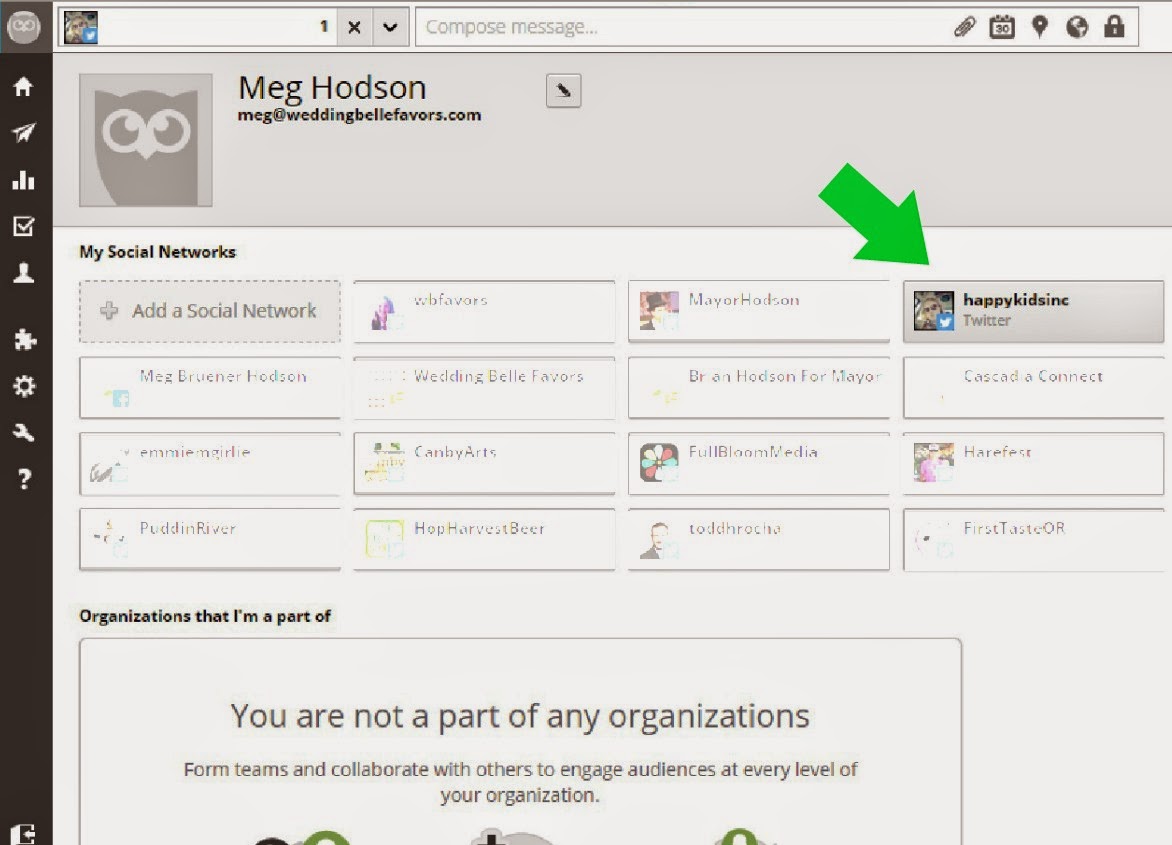
1. Open The Hoot Suite Dashboard. Open your dashboard on your desktop (you cannot make this change via their mobile app at this time), In the very top left hand corner, click/hover over the Hoot Suite owl. Your profile name should pop out; click on it.

Native Twitter Photos Via Hoot Suite


2. Select Twitter Within Your Social Networks. Once you click on your profile name, you are taken to a screen with all of your social networks listed. Hover over the Twitter profile you wish to make a change to. You will see a clock dial show up in the right top corner. Click on it and a drop down menu will appear. Click on "settings".

Native Twitter Photos Via Hoot Suite


3. Change Your Image Upload Default. On the screen that now appears, you will see an "Image Uploads" heading. Below that is a drop down menu. Choose "pic.twitter.com" as the default for your image uploads.  You may be asked to provide your Twitter login and password again. Note: Using pic.twitter.com as your image upload service will display as ow.ly when composing but will update to pic.twitter.com when posted.

Native Twitter Photos Via Hoot Suite


Happy tweeting!


Follow along:
 photo facebooksoft_zps2ca46363.png photo instagramsoft_zps234eaf53.png photo twittersoft_zps7e0a4b92.png photo emailsoft_zps2931cb4a.png photo pininterestsoft_zps05cdae05.png photo googleplus_zps1619805c.png photo tumblrsoft_zpsd813c422.png photo rsssoft_zpsaf899a58.png
Tuesday, August 26, 2014

Building Your Brand With A Hashtag

By Meg Hodson

Hashtags are an old friend at this point on social media.  Hashtags have been commonplace since the inception of Twitter and Instagram; even on Facebook, hashtags are becoming the norm.  We use them to chat about fun topics like #WorldCup or the #Oscars.  We have live chats based around them.  They are also a huge identifying piece to campaigns and brands (think of the recent viral scope of the #IceBucketChallenge for ALS). 

Brands are seeing the importance of using hashtags.  It's fairly obvious that a beer company should use hashtags that correlate with their brand, such as #beer or #craftbeer.  But I've noticed (with a smile on my face) that many brands are finding their own unique, brand-specific hashtag to add to their logos, advertisements, cover photos, business cards, and other marketing materials. Why is this important?

Branding Hashtag Social Media

1. Spreading A Message.  Whether your hashtag is your tag line as a brand or a motto, you can use it to spread a message.  Many of you might be familiar with Coca-Cola's latest campaign with names on cans and bottles, hoping customers will find their name and #ShareACoke. Coke gets a 2-for-1 with this hashtag, spreading both their brand name and a message.  They are directing customers to do something specific through a hashtag.....brilliant.

2. Creating A Culture Around Your Brand. I recently noticed Bud Light is using the hashtag #UpForWhatever with their brand. I've noticed it on posters and on their Twitter profile. While seeing that hashtag by itself would not make you think of beer or Bud Light, that's not the point. They are creating a culture, a feeling, a vibe by associating that hashtag with their brand. It''s an extension of the brand specifically for social media. It personalizes the brand, which is so important these days on social channels.

3. Show You Are Connected.  Hashtags are important. I get frustrated with brands that don't use them on social media. Hashtags are a way for people to talk about your brand on social sites. Why wouldn't you want to capitalize on that?

4. Don't Use Too Many Hashtags. Don't dilute your brand with too many hashtags. Choose 1 or 2 that you truly want to define your brand. You don't want to spread your message loosely across numerous hashtags; keep people together with less. 

What are some of your favorite hashtags you have seen brands using lately?


  photo facebooksoft_zps2ca46363.png photo instagramsoft_zps234eaf53.png photo twittersoft_zps7e0a4b92.png photo emailsoft_zps2931cb4a.png photo pininterestsoft_zps05cdae05.png photo googleplus_zps1619805c.png photo tumblrsoft_zpsd813c422.png photo rsssoft_zpsaf899a58.png
Tuesday, June 10, 2014

It's Not Always Easy To Share

By Meg Hodson

I had planned on a late night of blogging yesterday.  I do that often.  I am motivated, have my thoughts and posts organized, my to-do list is close-by.  I started on a post that I had wanted to finish for a long time about social media.  My fingers hit the keys.  But they did not fly like they usually do.  It was like I was trudging through mud.  I barely got a paragraph written and decided to stop.  And because it wasn't flowing on this post, I decided to just shut down my computer and not finish a single blogging task.  

Early in my blogging career, I would have been very frustrated with not being able to finish that post.  If you are an active blogger, there is that pressure to keep a continuous stream of posts published on your blog. You don't want anyone to forget you, right?

Well, readers will definitely forget you if you publish material that is not engaging, heartfelt, and well written. Trust me, that feeling that something was "forced" will definitely come through in your words.  Some of the best advice I gave myself awhile ago was to hold off and not publish work if you truly did not have something novel and passionate to publish.   In other words, if you are struggling to place pen to paper, take a break.

Blogging Mom Blogger Writing Blogs

That's exactly what I did last night.  It's not that I didn't have in my head what I wanted to say; the process of forming it into an article just wasn't happening.  That post will be published soon....at the right time when my thought process is spot on.  

At times like this, I remind myself of the wealth of articles I HAVE published on my blog.  If this happens to you as a blogger, take it as a great time to sift through old posts.  I often stumble upon ones that are perfect to reshare.  Don't forget that you are likely growing new followers each day, new readers who might have missed a lot of what you have shared in the past.  Be proud of those past posts and share them again.  They just might give you the right inspiration to push forward.  


  photo facebooksoft_zps2ca46363.png photo instagramsoft_zps234eaf53.png photo twittersoft_zps7e0a4b92.png photo emailsoft_zps2931cb4a.png photo pininterestsoft_zps05cdae05.png photo googleplus_zps1619805c.png photo tumblrsoft_zpsd813c422.png photo rsssoft_zpsaf899a58.png
Tuesday, February 4, 2014

Must Have Blog Resource: Make Your Tweets Shine!

By Meg Hodson

Twitter is the social media platform I use most often.  For me, it's the perfect mix of promoting my blog, getting news, catching up with friends, following brands, and spying on celebrities.  But I know for many of you, Twitter can be overwhelming at first.  A lot of the standards and best practices for Twitter are like a foreign language.  Or, maybe you are good at the basics of Twitter, but aren't getting a lot of engagement.  

Well, I am here to help!  I've compiled a list of some of the best ways, in my opinion, to make your tweets stand out, get noticed, and engage.  
Make Your Tweets Shine!

1.  Catchy Phrasing. No one, I repeat, NO ONE, will pay attention to a boring tweet.  Seems obvious, right?  So, it's important to be creative with your tweet.  For example, if you are sharing a tweet about a recipe you posted on your blog, don't simply provide the name of the recipe and the link.  You need to go beyond.  Maybe it would sound something like this: "My mouth is already watering over these delightful fluffy rolls! Better ck. out the recipe here ----> (insert shortened url)"  Now you want to click!  

The same holds true when you are direct tweeting or retweeting from a website, Pinterest, Klout, etc.  When you hit "tweet", a window pops up and there is usually a pre-entered tweet to send through.  This is only a suggestion!  You can manually click on the text and add to it, rearrange, and make it your own; it personalizes the tweets and will make it stand out among all the standard tweets that come from others from the same site.

2.  Call To Action.  So often, I see tweets that should be ones that get retweeted a lot.  For some, that does happen.  But for others, it does not.  When it seems appropriate, put a call to action in your tweets. For example, if you are promoting an event, you might compose a tweet like "RT if you are attending the charity event for breast cancer this Saturday in Portland!"  I often use RT (retweet) and PLS RT (please RT) in my tweets.  

Another call to action is asking for a reply to your tweet.  I was tweeting a lot during the Superbowl this week and during the Bruno Mars performance.  You might have had a tweet like "Reply with your favorite @brunomars song!"

3.  Hashtags.  Hashtags are a mainstay of Twitter and are becoming common on other platforms as well, like Instagram.  They make it easy to navigate topics that users are interested in.  Thus, if you want someone to find you that is not following you, hashtags are a must.  

And don't forget to include hashtags when you reply to a tweet (even if the original tweet had a hashtag).  

4. Know Your Abbreviations.  Twitter is littered with shortened abbreviations.  Some might be obvious or common, like the "RT" I mentioned above.  But there are quite a few that do pop up that you want to familiarize yourself with.  I found a good list on another blog that you can check out:  Click here.

5.  Tag People.  Use the power of Twitter to connect with friends, celebrities, and brands directly. Research the brand you are looking for on Twitter and make sure the profile has the blue check mark that show's it's a verified account.  In your tweets, tag the company or brand; you may also to create a hashtag out of the company, too.  For example, if you are sending out a tweet about Coca-Cola, consider adding @coke and #coke. 

Happy tweeting!

If you like what you're reading, I invite you to follow my blog.  Cheers!
 photo facebooksoft_zps2ca46363.png photo instagramsoft_zps234eaf53.png photo twittersoft_zps7e0a4b92.png photo emailsoft_zps2931cb4a.png photo pininterestsoft_zps05cdae05.png photo googleplus_zps1619805c.png photo tumblrsoft_zpsd813c422.png photo rsssoft_zpsaf899a58.png
Tuesday, November 19, 2013

Must Have Blog Resource: Google Plus Custom Links

By Meg Hodson

We all know how important links on your blog are and incoming links to your blog from other sites (think Pinterest).  What we sometimes forget about are those "hidden links" that help us in our search engine presence and overall web presence.  Every time you add a button to someone else's blog, you are creating a link to your blog!  Every time you leave a comment and leave a clickable link, you are improving your link presence to your blog (if you don't know how to do that, read my article here).  

Then, there are the links we add to our profiles on other sites.  If you have a Facebook page for your blog, you have undoubtedly created links on your timeline to your blog, Twitter profile, etc.  Maybe you use Linked In.  If you use Instagram, you can add one profile link.  These are all very important.   Google+ has an enhanced version of this process and a lot of people don't know about it!  Plus, Google is becoming increasingly important for bloggers and their web presence.  So, in my opinion, it's worth the few minutes to update your profile as much as you can, including those all-important links.  
First, go to your Google+ profile page.  Across the top of your feed (below your cover photo and photo), there is a menu.  Click on the "About" menu link.

Then, scroll down through the various "boxes" until you find the one marked "Links".  At the bottom of that box is an edit button; click on edit.


Once you click edit, you are taken to a screen where you can edit various links for your profile.  There are 3 important spots to cover here.  First, click on the "Manage Connected Accounts" link:

Once you click on that link, you are taken to a list and a drop down menu.  The drop down menu has just a few basic connected accounts you can add (Facebook, LinkedIn, You Tube, etc.).  This is certainly not an exhaustive list, but enter what you can.  Add as many as you like and be sure to save.


Now, I am not sure where these go exactly in your profile.  When you are done and you go back to your links screen, they aren't really displayed.  So, that's why I like to also go to the "add custom link" link, which is right above the "manage connected accounts" link.  When you click on this, a label and link box for one link will appear.  Under label, enter something like "Instagram" and then add the link in the next box.  You can keep clicking the "add custom link" as many times as you like to add more links.  Be sure to scroll to the bottom and hit save when you are done.  Now, cute little icons with links that you've added are displayed now.  
Lastly, let's work on the "Contributor to" section at the bottom of the link section.  Click edit again in the link box and you're taken to the edit screen.  At the bottom is the "Contributor to" screen; click the "add custom link" link below that (or it will appear below any links that have already been entered).  

So, once you click on that, a quick editing box drops down.  This is similar to the custom link you entered above.  For a label, enter the title that you want (that might be your blog title, a blog you guest blogged on, etc.).  To the right of that is a drop down menu to select if you are a current contributor or past contributor. Lastly, in the 2nd box, add the link you would like associated with this title.  You can keep adding the links over and over until you are done.  Be sure to hit save at the bottom.  

Don't limit yourself in this last section!  Of course, you want any blogs you write for here, but think of other things you can highlight.  Links to blog posts you've posted on Blog Her, Sverve, and other blogger network sites are good.  Maybe you had a recipe that was featured on Foodgawker......add the link! Also consider adding blog hops that you sponsor or co-host.  The more, the merrier!  This is not only good for your search engine presence, but visitors of your Google+ profile can see your accolades as a blogger.


If you like what you're reading, I invite you to follow my blog.  Cheers!
 photo facebooksoft_zps2ca46363.png photo instagramsoft_zps234eaf53.png photo twittersoft_zps7e0a4b92.png photo emailsoft_zps2931cb4a.png photo pininterestsoft_zps05cdae05.png photo googleplus_zps1619805c.png photo tumblrsoft_zpsd813c422.png photo rsssoft_zpsaf899a58.png
09 10 11 12
Blogging tips