Happy Kids, Inc: Twitter
Showing posts with label Twitter. Show all posts
Wednesday, February 25, 2015

How To Post Native Twitter Images Via Hoot Suite

By Meg Hodson

Up until now, if you use Hoot Suite to attach a photo to your tweet, the resulting post on Twitter has a clickable ow.ly link for the image, not a native image on your Twitter profile. But now you have the option to use the ow.ly link OR have the photo become a native, organic part of not only the individual tweet, but part of your media on your Twitter profile. Best of all, it's super easy to do!


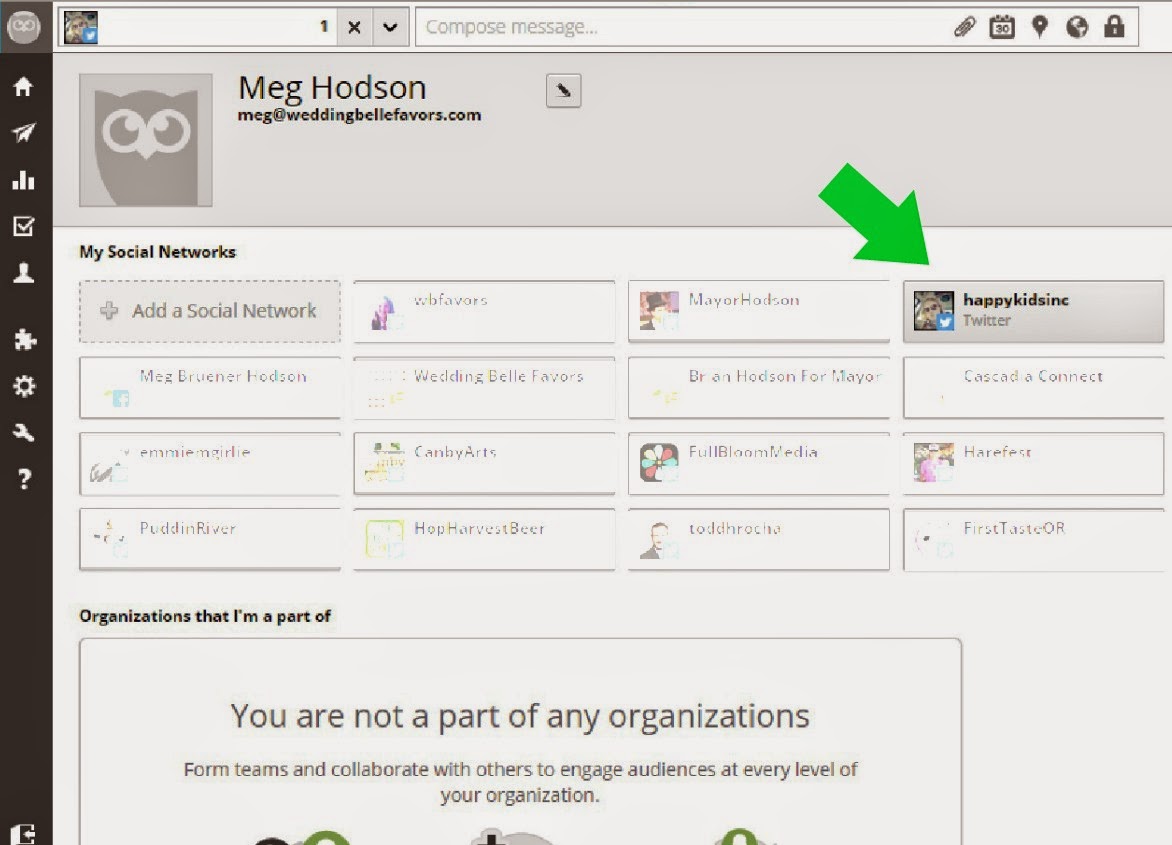
1. Open The Hoot Suite Dashboard. Open your dashboard on your desktop (you cannot make this change via their mobile app at this time), In the very top left hand corner, click/hover over the Hoot Suite owl. Your profile name should pop out; click on it.

Native Twitter Photos Via Hoot Suite


2. Select Twitter Within Your Social Networks. Once you click on your profile name, you are taken to a screen with all of your social networks listed. Hover over the Twitter profile you wish to make a change to. You will see a clock dial show up in the right top corner. Click on it and a drop down menu will appear. Click on "settings".

Native Twitter Photos Via Hoot Suite


3. Change Your Image Upload Default. On the screen that now appears, you will see an "Image Uploads" heading. Below that is a drop down menu. Choose "pic.twitter.com" as the default for your image uploads.  You may be asked to provide your Twitter login and password again. Note: Using pic.twitter.com as your image upload service will display as ow.ly when composing but will update to pic.twitter.com when posted.

Native Twitter Photos Via Hoot Suite


Happy tweeting!


Follow along:
 photo facebooksoft_zps2ca46363.png photo instagramsoft_zps234eaf53.png photo twittersoft_zps7e0a4b92.png photo emailsoft_zps2931cb4a.png photo pininterestsoft_zps05cdae05.png photo googleplus_zps1619805c.png photo tumblrsoft_zpsd813c422.png photo rsssoft_zpsaf899a58.png
Friday, June 27, 2014

Don't Be A Social Media Fail!

By Meg Hodson

I love social media.  It's a community I love being a part of.  I have learned a lot in the 4 years I have been active on social media.  I am still learning, too,  I've gathered a few of my favorite tips that I believe are key to having a good social media presence, hopefully guaranteeing you won't be a social media fail!

1.  Don't Buy Followers.  Followers and likes are the easiest thing for people to relate to when they view a profile or page.  Easy enough, right?  If you have more followers, then you are reaching more people?  It would make sense, then, to consider buying followers.  Well, unfortunately, if it's too good to be true, it probably is. Most of those supposed followers or likes you purchase aren't even real people or accounts.   Is that  high number of likes or followers really going to make a difference in the long run?

Let's say you have 100,000 followers on Twitter.  Only 500 of those followers are active and engaged with your message.  What I mean by this is that they are REAL followers, real people reading what you have to say.  The percentage you have of engaged followers is .5%.  So, not many of your "followers" are hearing what you have to say.  If no one is listening, your message is essentially falling on dead ears.

But let's say you have 5,000 Twitter followers and 4,000 of them are engaged, real people who are actively following you.  Your percentage of engaged listeners is a whopping 80%.  

Ultimately, you are putting your message out there on social media because you want people to listen, you want to gain new customers, or maybe you want to meet people yourself.  Fake likes and followers get you nowhere.  It is not organic and will ultimately lead to failure and a lackluster presence on social media.


2.  Be Truthful.  We have all been there.  We are standing in line at the checkout lane at the grocery store and all we see are the headlines on magazines of celebrity gossip.  Most of it is sensationalized and not true. But we are still drawn to it.  Do you buy the issue?  I would guess most of you would not.....and if you do, deep down you know it is not altogether truthful information. 

Remember this when you are sharing on social media.  Tell the truth.  Do not over sensationalize topics. Speak from the heart. Use humor.  You can certainly make your "headlines" swoonworthy, as long as you speak of something that actually happened.

3.  Engage Personally.  A colleague of mine gave me some sage advice that I will never forget: "Schedule content, create conversation."  In this busy world of social media, it is imperative and useful to be able to schedule posts and tweets.  That is a given.  But don't expect magic to happen if that is all you are doing.  Be ready to check your stream, engage with those that are sharing your content, get to know your fans.  It adds authenticity to your presence.

4.  Look At Your Stats.  For free, you have access to a wealth of information regarding your activity on social media.  Twitter can send you weekly updates via email, including your most popular tweets and links that are most clicked on.  Facebook has similar analytic data available.  Google Analytics is also helpful with website stats, as well as specific URL statisitcs (yes, you can enter social media URL's on Google Analytics!)  In addition, there are some beneficial and useful sites that for free (or a very minimal cost), give you amazing insight into your presence and behavior on social media.  One of my favorites is SumAll.  Check in often to see what is working the best on your social media channels.

5.  Use It or Lose It.  As much as we might want to only occasionally put our social media accounts to work, it doesn't work so well.  Social media posts have a very short shelf life.  What was news this morning may very well be irrelevant within hours, even minutes  You must keep your content fresh and constant.  That is no easy task.  While scheduling programs do help this process, it is still a commitment.  If your goal is to gain a solid presence on social media, it is a commitment you must make.  While you may have your days or little or no interaction, keep active on your accounts on some level as much as you can.

Good luck!


  photo facebooksoft_zps2ca46363.png photo instagramsoft_zps234eaf53.png photo twittersoft_zps7e0a4b92.png photo emailsoft_zps2931cb4a.png photo pininterestsoft_zps05cdae05.png photo googleplus_zps1619805c.png photo tumblrsoft_zpsd813c422.png photo rsssoft_zpsaf899a58.png
Tuesday, February 4, 2014

Must Have Blog Resource: Make Your Tweets Shine!

By Meg Hodson

Twitter is the social media platform I use most often.  For me, it's the perfect mix of promoting my blog, getting news, catching up with friends, following brands, and spying on celebrities.  But I know for many of you, Twitter can be overwhelming at first.  A lot of the standards and best practices for Twitter are like a foreign language.  Or, maybe you are good at the basics of Twitter, but aren't getting a lot of engagement.  

Well, I am here to help!  I've compiled a list of some of the best ways, in my opinion, to make your tweets stand out, get noticed, and engage.  
Make Your Tweets Shine!

1.  Catchy Phrasing. No one, I repeat, NO ONE, will pay attention to a boring tweet.  Seems obvious, right?  So, it's important to be creative with your tweet.  For example, if you are sharing a tweet about a recipe you posted on your blog, don't simply provide the name of the recipe and the link.  You need to go beyond.  Maybe it would sound something like this: "My mouth is already watering over these delightful fluffy rolls! Better ck. out the recipe here ----> (insert shortened url)"  Now you want to click!  

The same holds true when you are direct tweeting or retweeting from a website, Pinterest, Klout, etc.  When you hit "tweet", a window pops up and there is usually a pre-entered tweet to send through.  This is only a suggestion!  You can manually click on the text and add to it, rearrange, and make it your own; it personalizes the tweets and will make it stand out among all the standard tweets that come from others from the same site.

2.  Call To Action.  So often, I see tweets that should be ones that get retweeted a lot.  For some, that does happen.  But for others, it does not.  When it seems appropriate, put a call to action in your tweets. For example, if you are promoting an event, you might compose a tweet like "RT if you are attending the charity event for breast cancer this Saturday in Portland!"  I often use RT (retweet) and PLS RT (please RT) in my tweets.  

Another call to action is asking for a reply to your tweet.  I was tweeting a lot during the Superbowl this week and during the Bruno Mars performance.  You might have had a tweet like "Reply with your favorite @brunomars song!"

3.  Hashtags.  Hashtags are a mainstay of Twitter and are becoming common on other platforms as well, like Instagram.  They make it easy to navigate topics that users are interested in.  Thus, if you want someone to find you that is not following you, hashtags are a must.  

And don't forget to include hashtags when you reply to a tweet (even if the original tweet had a hashtag).  

4. Know Your Abbreviations.  Twitter is littered with shortened abbreviations.  Some might be obvious or common, like the "RT" I mentioned above.  But there are quite a few that do pop up that you want to familiarize yourself with.  I found a good list on another blog that you can check out:  Click here.

5.  Tag People.  Use the power of Twitter to connect with friends, celebrities, and brands directly. Research the brand you are looking for on Twitter and make sure the profile has the blue check mark that show's it's a verified account.  In your tweets, tag the company or brand; you may also to create a hashtag out of the company, too.  For example, if you are sending out a tweet about Coca-Cola, consider adding @coke and #coke. 

Happy tweeting!

If you like what you're reading, I invite you to follow my blog.  Cheers!
 photo facebooksoft_zps2ca46363.png photo instagramsoft_zps234eaf53.png photo twittersoft_zps7e0a4b92.png photo emailsoft_zps2931cb4a.png photo pininterestsoft_zps05cdae05.png photo googleplus_zps1619805c.png photo tumblrsoft_zpsd813c422.png photo rsssoft_zpsaf899a58.png
Sunday, January 12, 2014

American Idol Twitter Party: #IdolPreParty + Giveaway

I'm excited to be one of the IdolTweethearts bringing you this fun party and giveaway. Official American Idol Twitter Party is January 13 @ 4pm PST!  But let's get things kicked off with a giveaway.  Check out the great giveaway below for some American Idol Swag!  13 winners will receive American Idol bags with themed merchandise.  What a perfect way to kick off the season!

For the party on Monday, be sure to use the hashtag #IdolPreParty to join the fun.  See you then!

#idolpreparty


a Rafflecopter giveaway


If you like what you're reading, I invite you to follow my blog.  Cheers!
 photo facebooksoft_zps2ca46363.png photo instagramsoft_zps234eaf53.png photo twittersoft_zps7e0a4b92.png photo emailsoft_zps2931cb4a.png photo pininterestsoft_zps05cdae05.png photo googleplus_zps1619805c.png photo tumblrsoft_zpsd813c422.png photo rsssoft_zpsaf899a58.png
Wednesday, March 13, 2013

Must-Have Blog Resource: Hoot Suite & Twitter Lists


There are lots of little things to learn, remember, fine tune, and keep track of when building your blog.  One tool I find indispensible in blog promotion is Hoot Suite.  Many of you have heard of it, a lot of you use it, some of you don't, all of you should!

There are many layers to Hoot Suite and lots functions that are worth using within the program. You might use a few of them or all of them.  It's easy to fine tune to your needs.  For a general introduction to Hoot Suite and how to use it for blog promotion, click here.


In this article, I am going to focus on one function of Hoot Suite that I have found invaluable, Twitter lists. I I have also found this to be an invaluable tool when navigating Twitter.  Somedays, it's true, I just want to go through my home feed from start to finish and read everything.  But sometimes, it's important to be more focused.  Here are some of the lists I have made and use regularly:

1.  Friends
2.  Blog Hops
3.  Blogs I've Written For
4.  Favorite Blogs
5.  Blog Resources
6.  Media
7.  Just For Fun
8.  Frequent Retweeters
9.  Mom Bloggers
10.Celebrities

For example, usually on Sunday night, I will browse my "blog hops" list and get a running lists of hops I want to visit that week.  It's such a time saver.  Lists allow you to be more engaged in Twitter.  And being more engaged will gain you more followers, a better network of friends, and your blog promotion becomes streamlined.

To make a list for Twitter in Hoot Suite:

1.  Sign up for your free Hoot Suite account if you haven't already.  On the main dashboard (click the house icon on the left hand menu bar), click the "getting started" tab across the top.  This screen should appear (see below); click "add another social network" and be sure your Twitter profile is inputed.


2.  Depending on how many social networks you have added, you will have tabs across the top of the dashboard, naming each of the accounts you've added.  Click the tab across the top with your Twitter profile.  Your Twitter streams should fill the screen.  Above the far left column (usually your home feed) is a rectangular icon with the saying "+ Add Stream " in it.


3.  A box will pop up that shows various social media extensions on the left and a series of tabs on the right.  Click the tab (the far right tab) that is marked "Lists".  Then, select your Twitter profile from the drop down menu.  The list will populate with any lists you have already created.  Below this list is a box and option to select a dot next to "create new list".  Enter a title, a description if desired, and mark your list as public or private.  Finally, click "add stream".  You will then see this list pop up in your columns of streams within Hoot Suite.  I don't use Hoot Suite too often to read my Twitter feed, mentions, lists, etc.  I use the Twitter app or website most.


4.  To access your lists directly on the Twitter site, go to your profile ("Me") and click on "Lists" (it should appear in a list on the top left side).  From the Twitter app, click on "Me" and "Lists" should appear below your profile pic and recent tweets.


If you like what you're reading, I invite you to follow my blog.  Cheers!


09 10 11 12
Blogging tips